 You are viewing an old version of this page. View the current version.
Compare with Current ·
View Page History
You are viewing an old version of this page. View the current version.
Compare with Current ·
View Page History
To create a new editorial, it is necessary to follow the steps below:
Open the Issue and choose the tab “Editorials”
Click on the icon containing a green +;

Fill in the fields in the window showing up on the left side of the screen:
Title: the title of your editorial;
File: this value is automatically filled in by TIMONE System as soon as the editorial in sync with an editorial system;
Quantity: the number of pages of the editorial;
Notes: additional notes about the editorial;
Section: the section of the editorial;
Dossier: the WoodWing Enterprise dossier the editorial is contained into;
Editorial Template: the editorial system editorial template to be assigned to the editorial;
Status: the workflow status of the editorial.
Once you have filled in all the information you need, confirm using the green tick on the upper left side of the panel.

The created editorial is now available within the Editorials list.
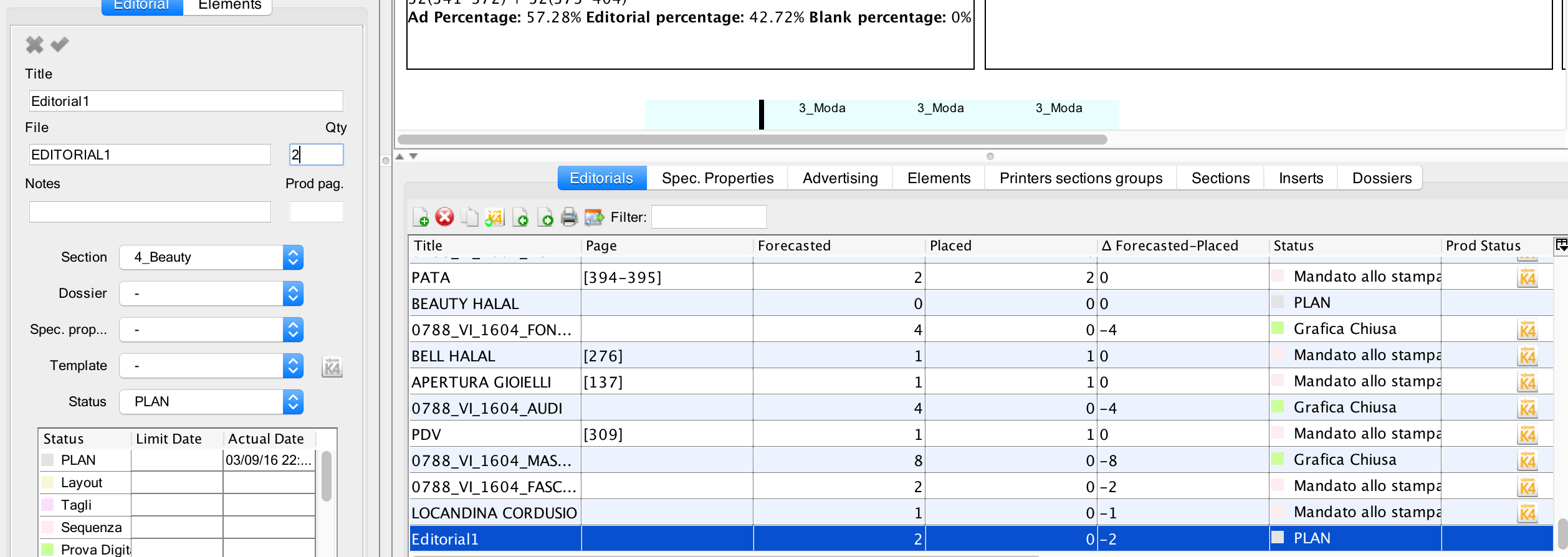
Once you have created a NEW Editorial, you can insert it wherever you want into the preview. If you want to see the NEW Editorial in InDesign, you just have to:
1) click on the tab “Issues”
2) click on “Create/sync all layouts in the prod system”.
Moreover, you can also click on the production system icon (WW / K4)

Another way to create an editorial is to duplicate an existing one.