...
The supported languages are: Italian, English, French, German and Spanish.
Installing and starting the client
To launch TIMONE Plan the user has to:
1. Open the TIMONE web page and log into the system;
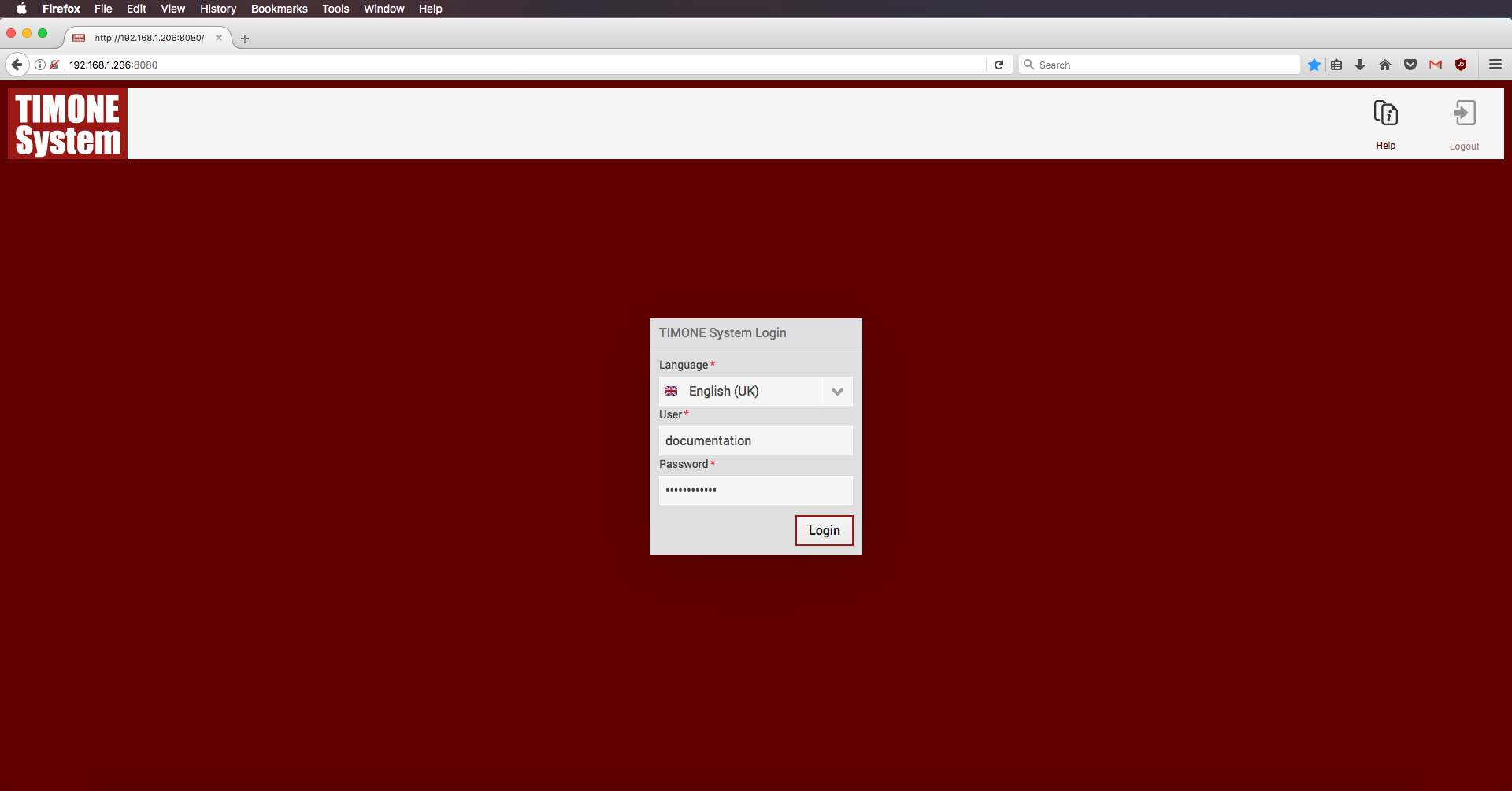
3. ALT+click on TIMONE Plan Module;
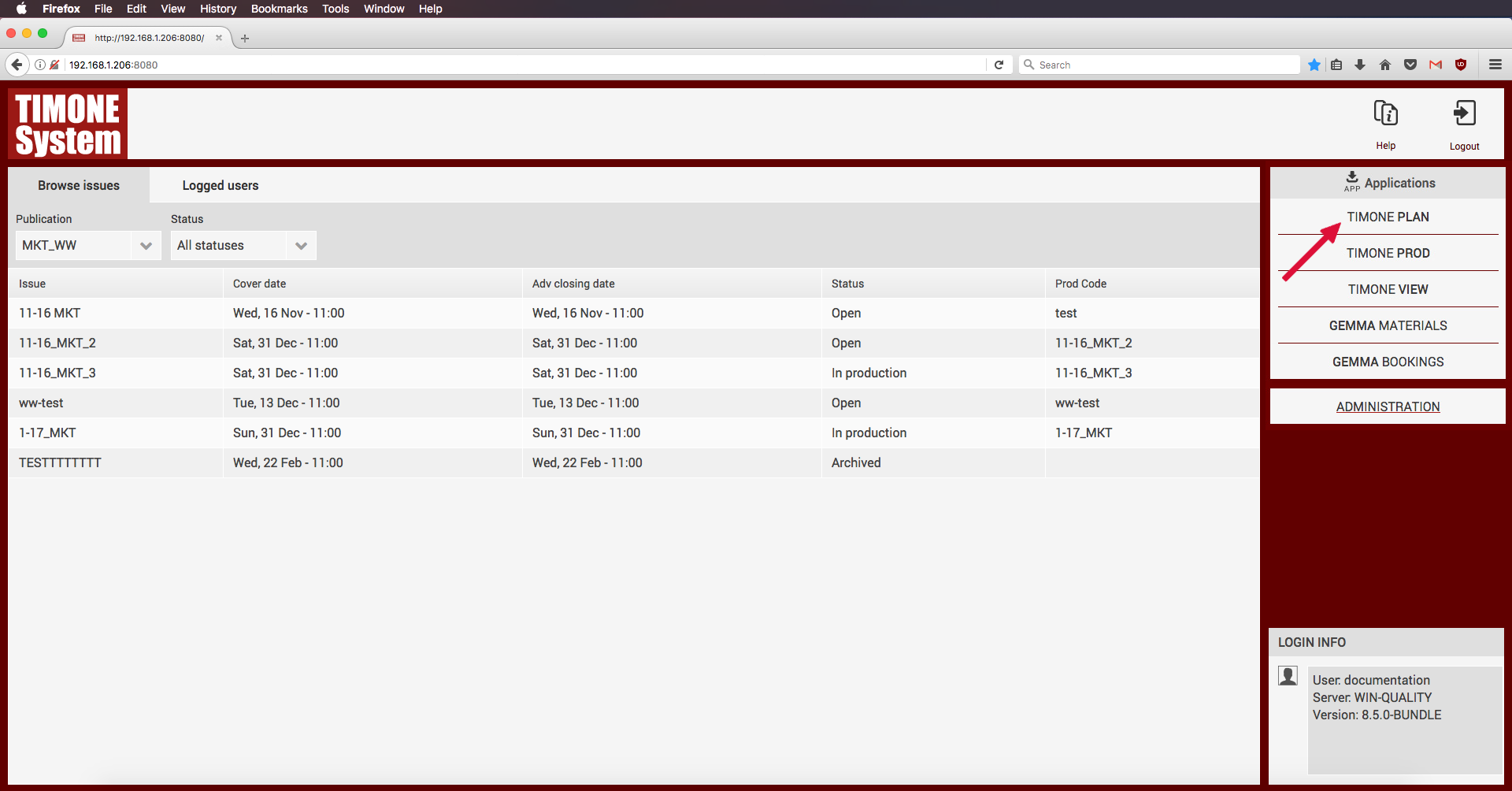
4. Save the .jnlp file
| Info |
|---|
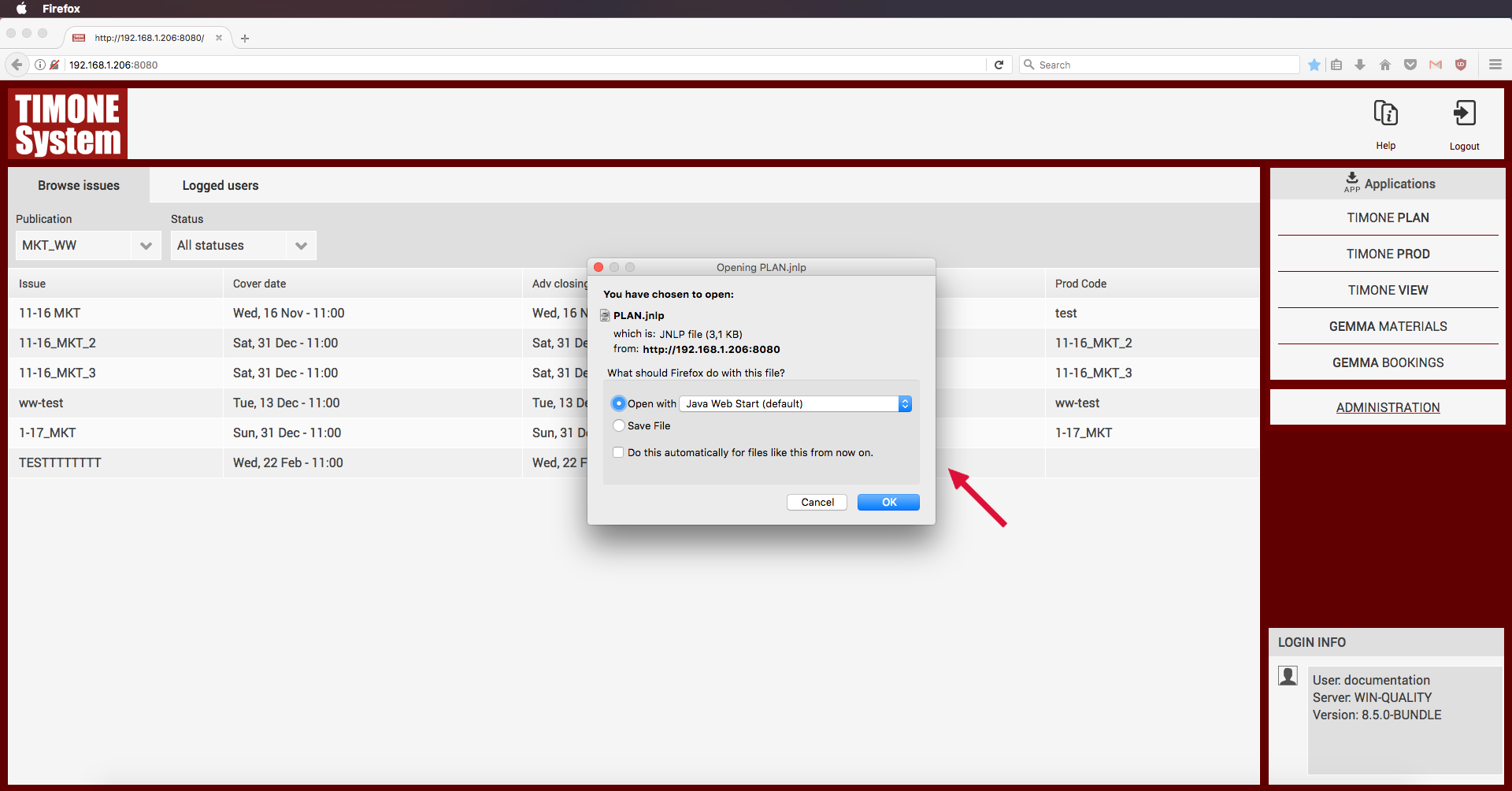
Depending on the browser, the Java Web Start application can automatically start to manage the client download process; if this doesn't happen, the JNLP file is available inside the default download folder and can be launched by clicking on it. |
5. Right click on the .jnlp file downloaded on his client machine;
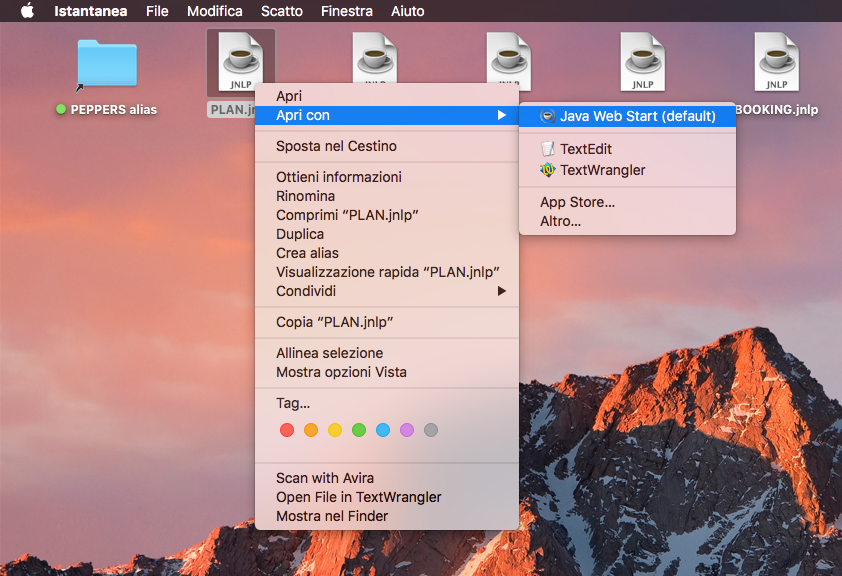
6. Open the .jnpl file with Java Web Start;
...
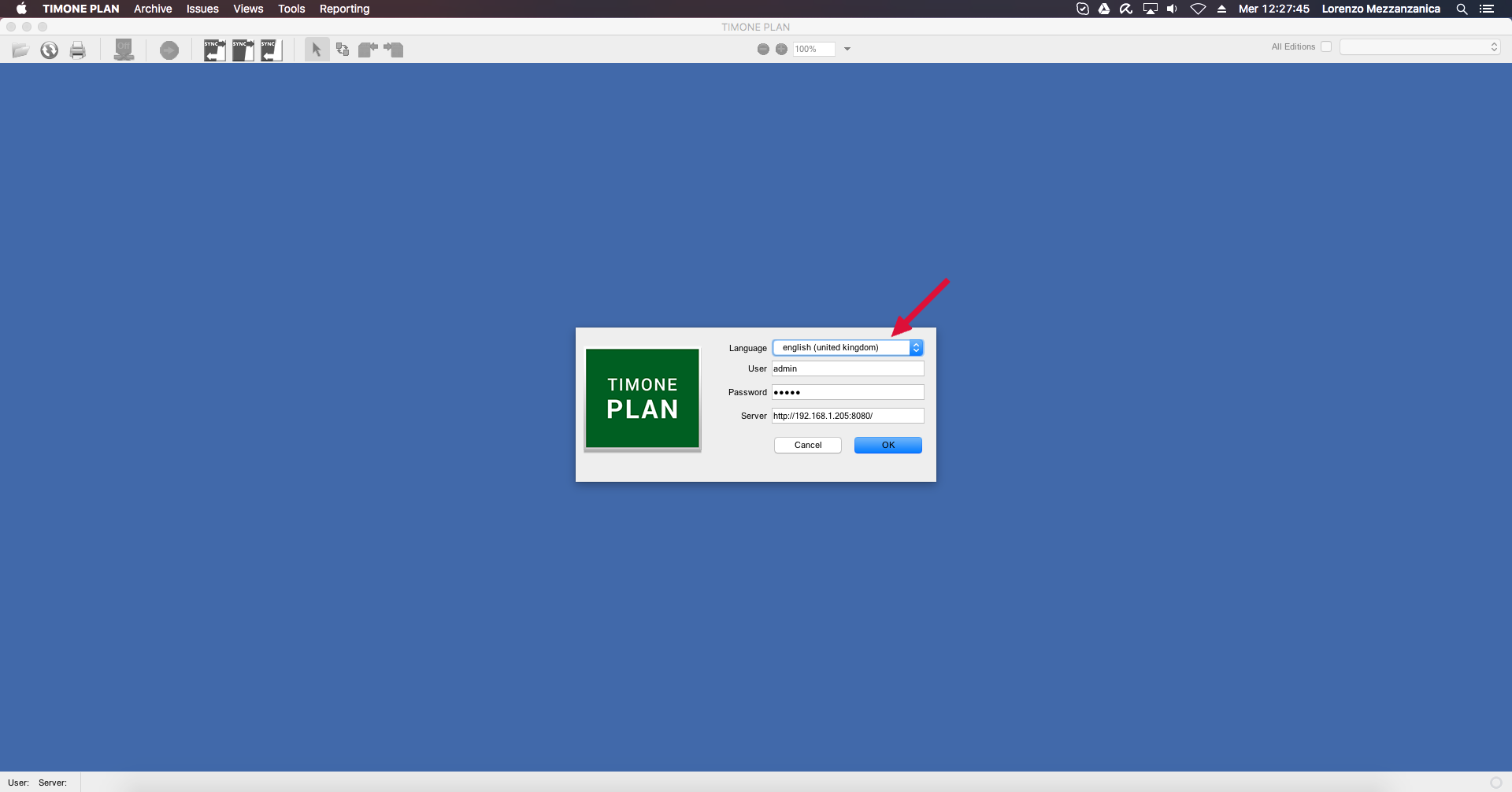
8. Select the language and enter the Username, Password and Server Address; The supported languages are: Italian, English, French, German and Spanish
...
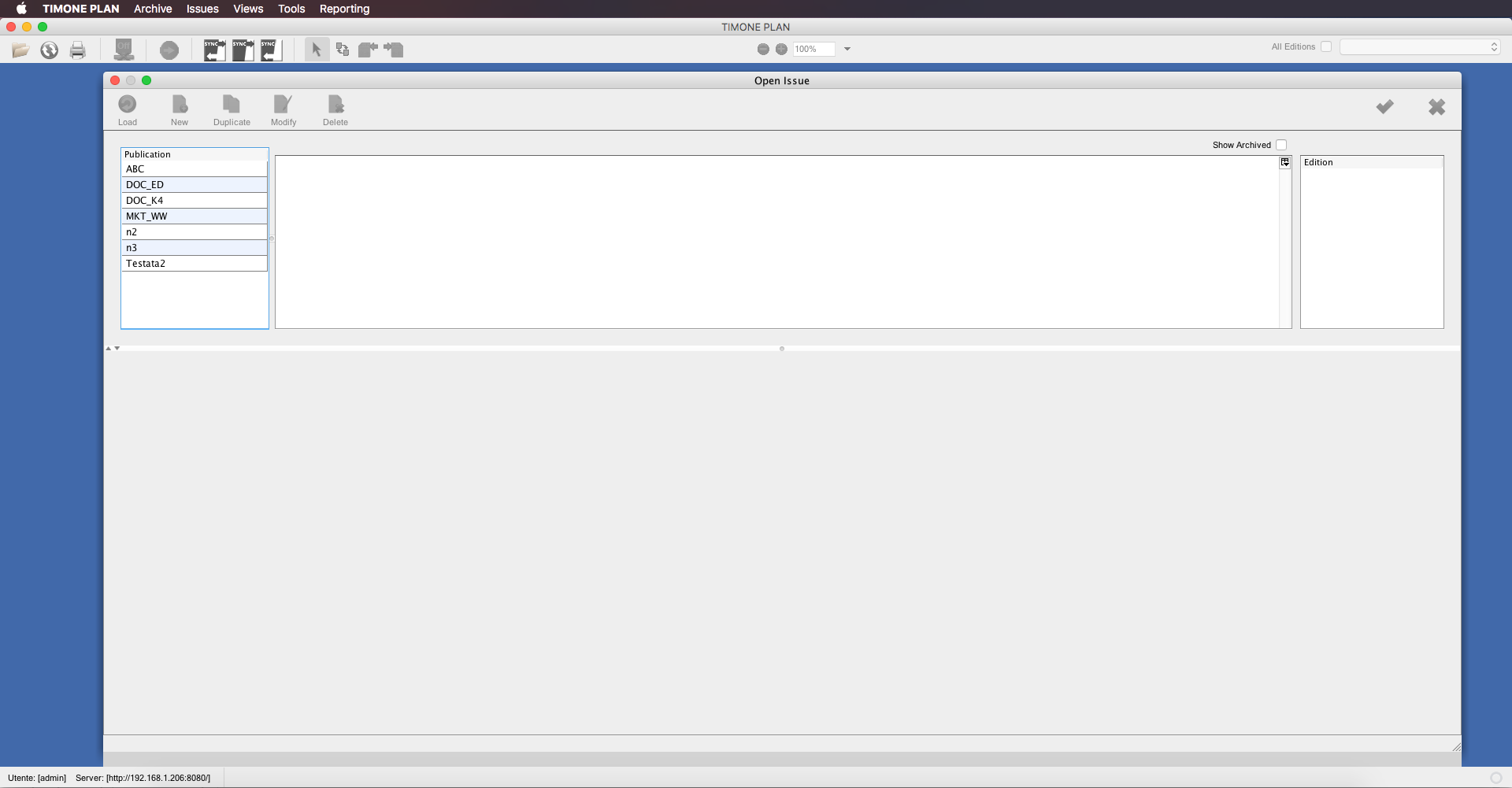
10. After the login, the Issue Management Panel is displayed.
| Tip |
|---|
For more info please consult Issues Management Panel page. |
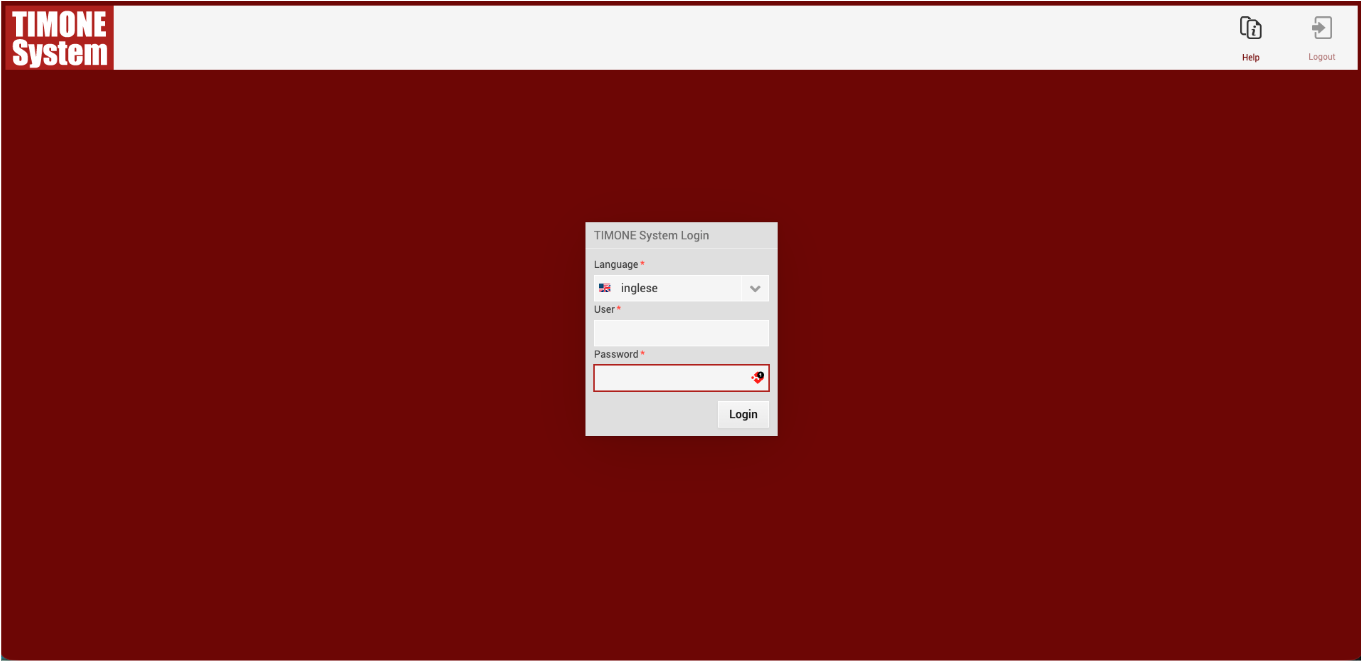
2. From the web page, download the TIMONE Plan installer corresponding to your operating system and architecture (macOS ARM, macOS Intel or Windows);
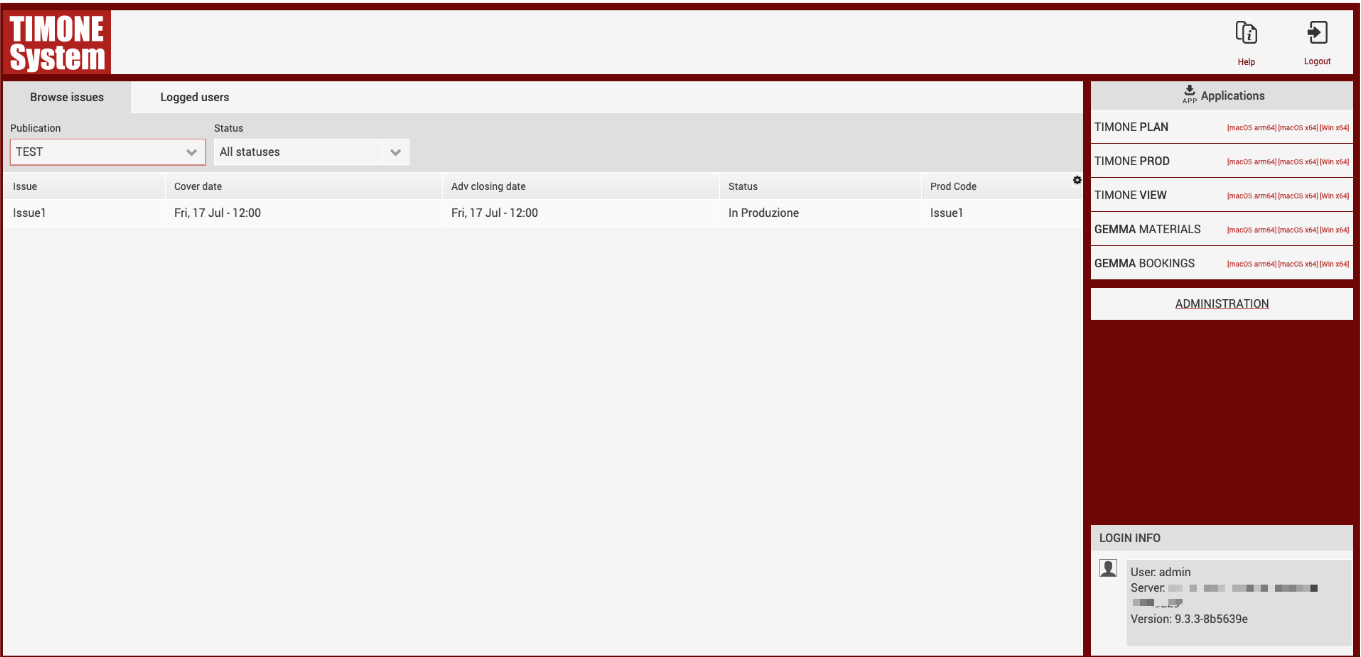
3. Install and start the application;
4. When the login page appears, select the language and enter the username, the password and the server address;
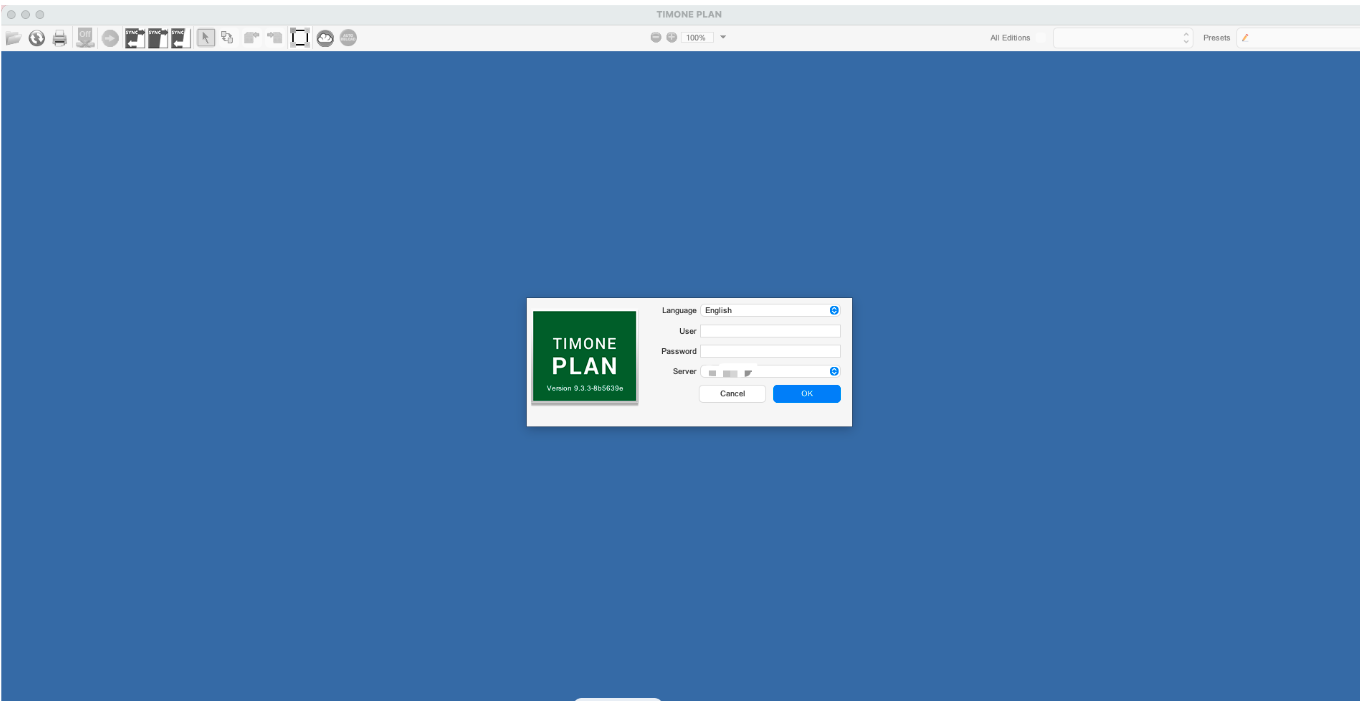
5. Click OK;
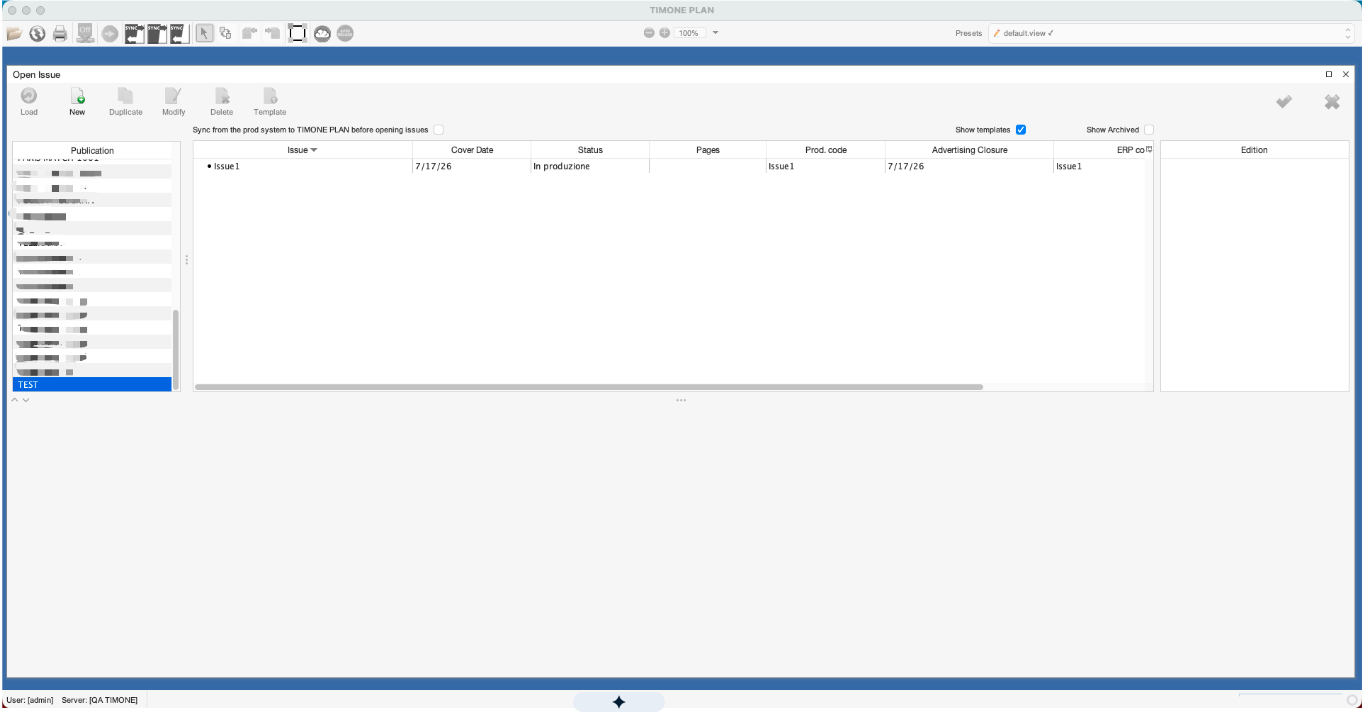
6. After login, the panel for managing issues is displayed.
| Info |
|---|
The native client integrates its own Java runtime environment, ensuring compatibility with the most recent versions of operating systems (including macOS Tahoe). It is therefore not necessary to install Java separately on the user's machine. |
| Info |
|---|
If your organization uses login via an identity provider (OAuth 2.0 / OpenID Connect, for example OKTA), login takes place through the provider's login page instead of through the user and password fields. |
| Tip |
|---|
For more info please consult Issues Management Panel page. |
Startup via JNLP file (OpenWebStart)
As an alternative to the native application, TIMONE Plan can be started via a .jnlp file that can be downloaded from the TIMONE web page. For this mode, OpenWebStart must be installed on the machine.
- From the web page, with ALT+right-click on TIMONE Plan, save the .jnlp file;
- Open the downloaded .jnlp file with OpenWebStart;
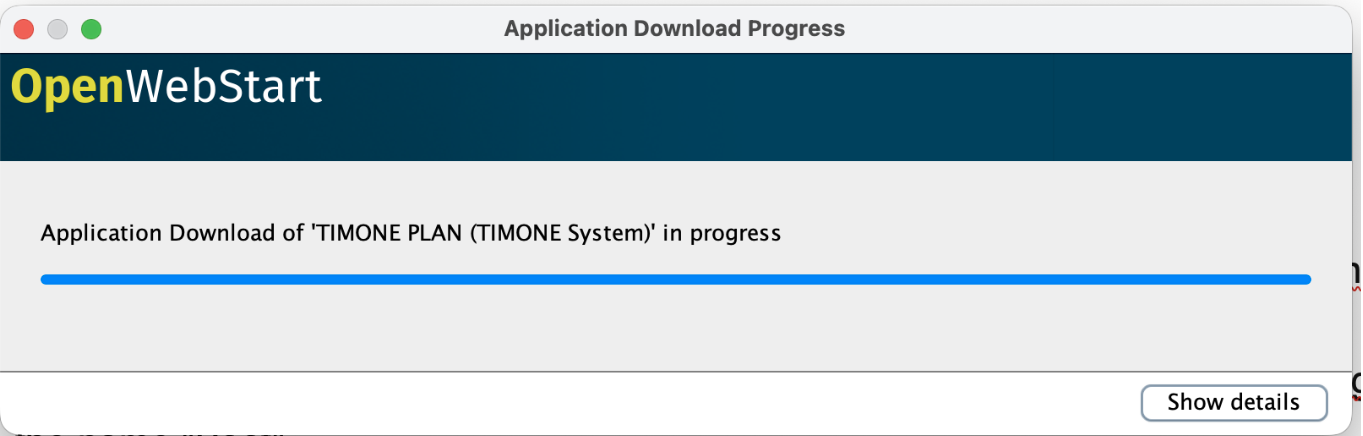
3. The application starts and the login page is displayed;
4. Select the language, enter the username, the password and the server address, then click OK.
| Info |
|---|
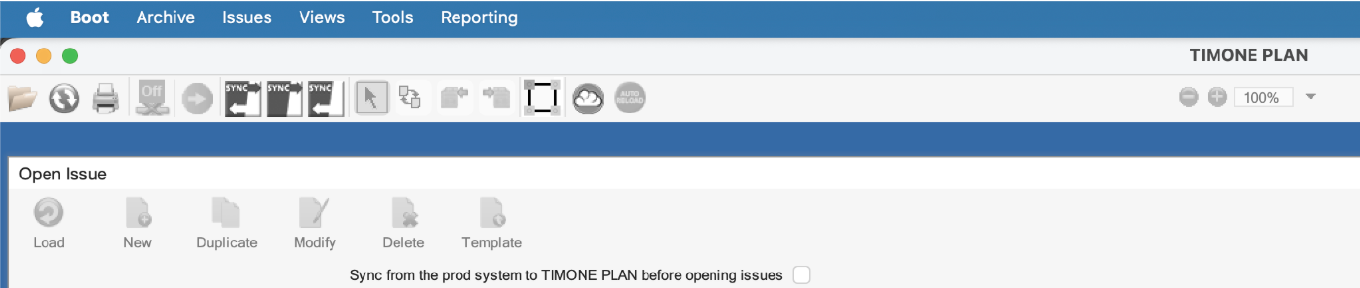
Note: When the application is started via OpenWebStart, it may be displayed in the operating system menu with the name "Boot". |
4. Save the .jnlp file
| Info |
|---|
Depending on the browser, the Java Web Start application can automatically start to manage the client download process; if this doesn't happen, the JNLP file is available inside the default download folder and can be launched by clicking on it |
...