| HTML |
|---|
<script type="text/javascript">
<!--
function tell_toggle_visibility(id) {
var e = document.getElementById(id);
if(e.style.display == 'block')
e.style.display = 'none';
else
e.style.display = 'block';
}
//-->
</script>
<a href="#">
<img style="-webkit-user-select:none; display:block; margin:auto;" src="http://docs.tellnet.it/download/attachments/94047099404604/SMALL+_BANNER.jpg?version=1&modificationDate=1478427166505_White.gif" align="left" onclick="tell_toggle_visibility('tell_video');">
</a>
<br style="clear: both;">
<div style='display:block'></div>
<div id="tell_video" style='display:none'>
<iframe width="960" height="540" src="https://www.youtube.com/embed/6_Emx8hAgcU?rel=0&showinfo=0" frameborder="0" allowfullscreen></iframe>
</div> |
To launch TIMONE Plan you have to:
1. Right clicking on the .jnlp file;
2. Open the .jnpl file with Java Web Start;
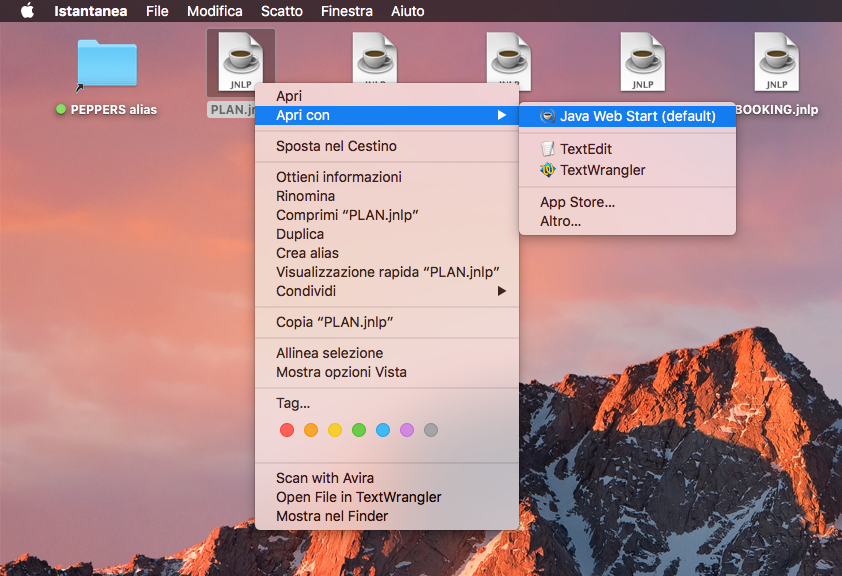
...
4. Enter the Username, Password and Server Address;
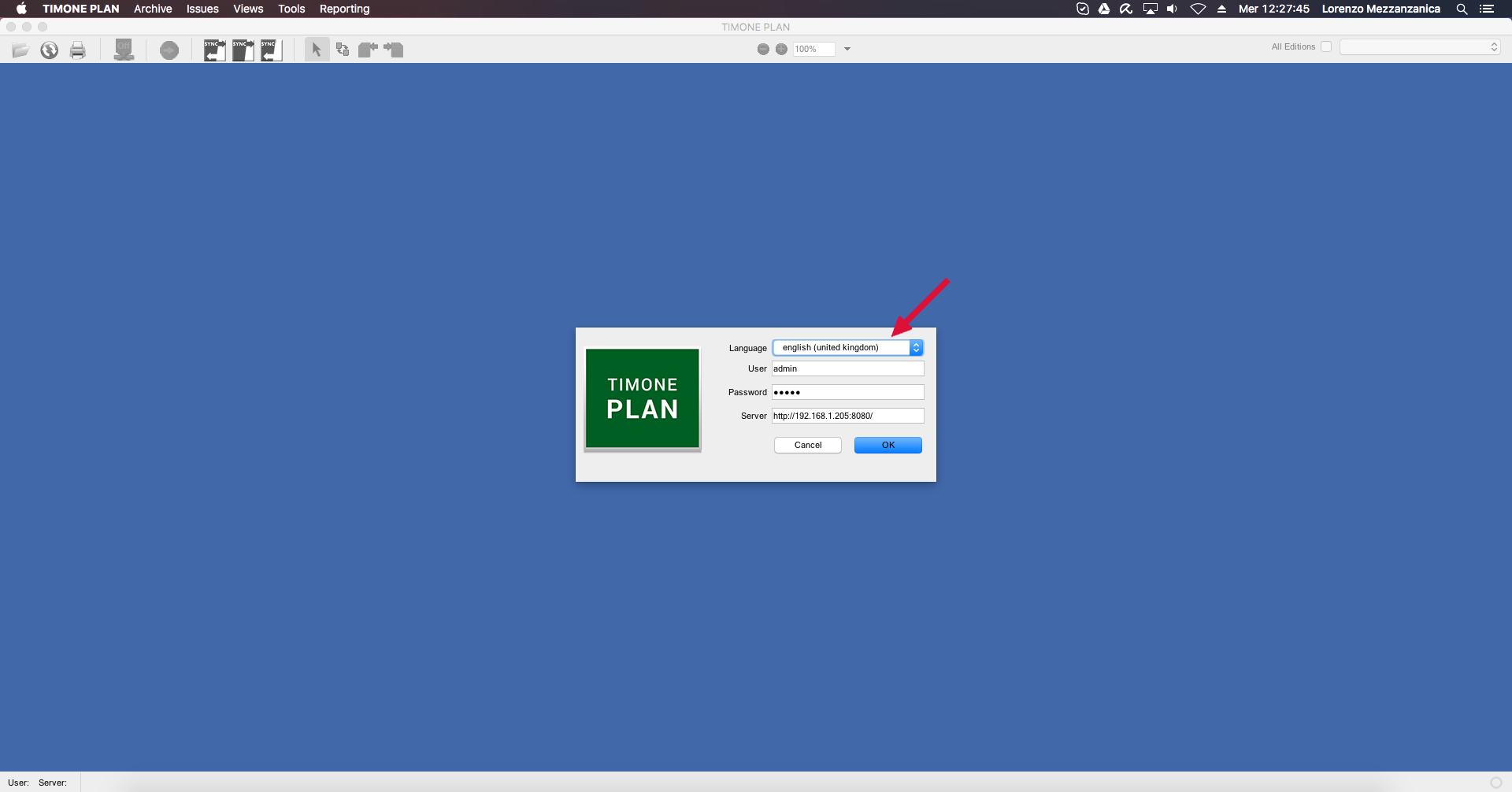
...
6. You will be redirected to the Issue Management Page.
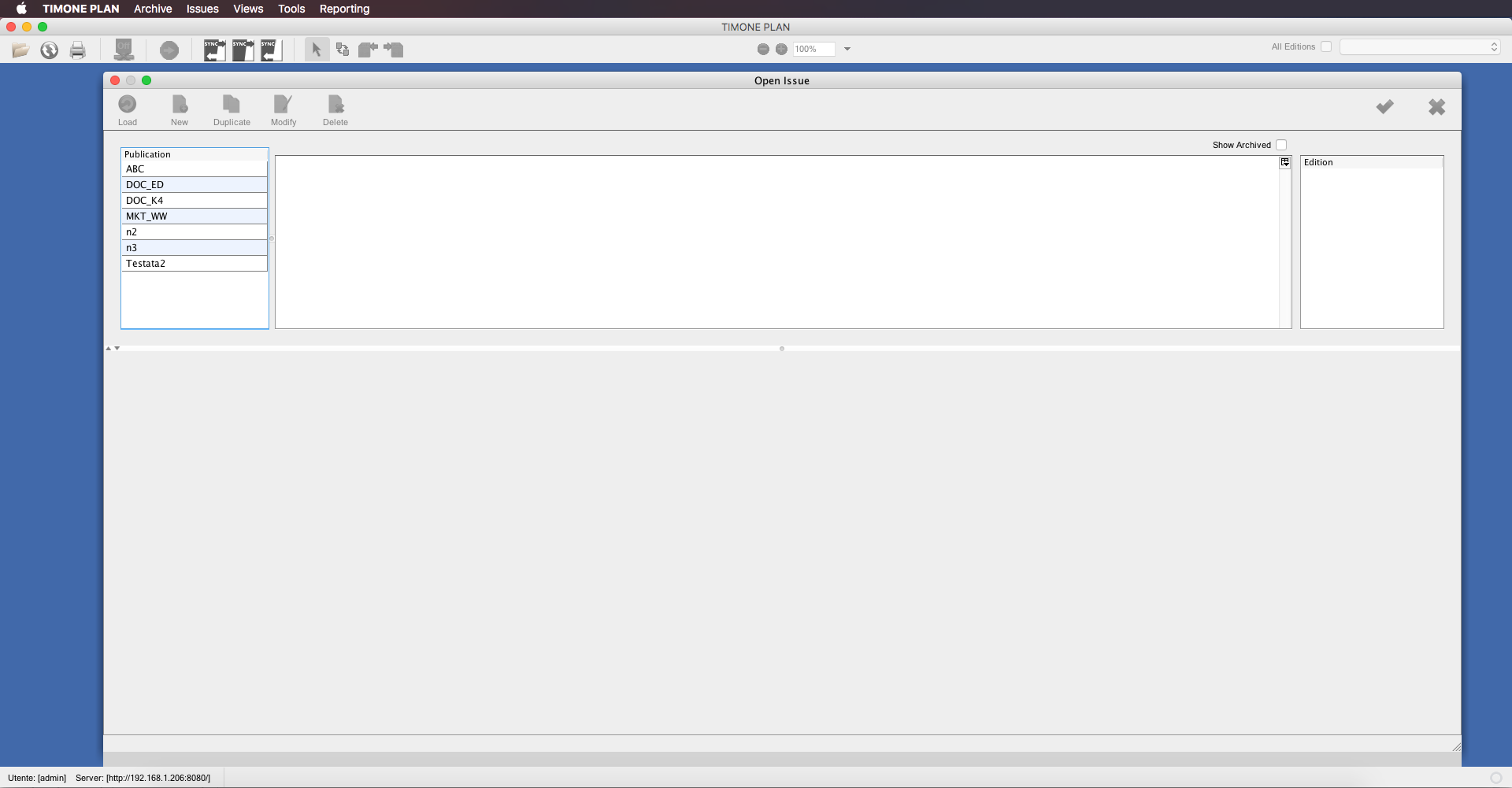
From this window, users can manage their issues: they can Create new issues, Duplicate, Modify and Delete one or more of them.
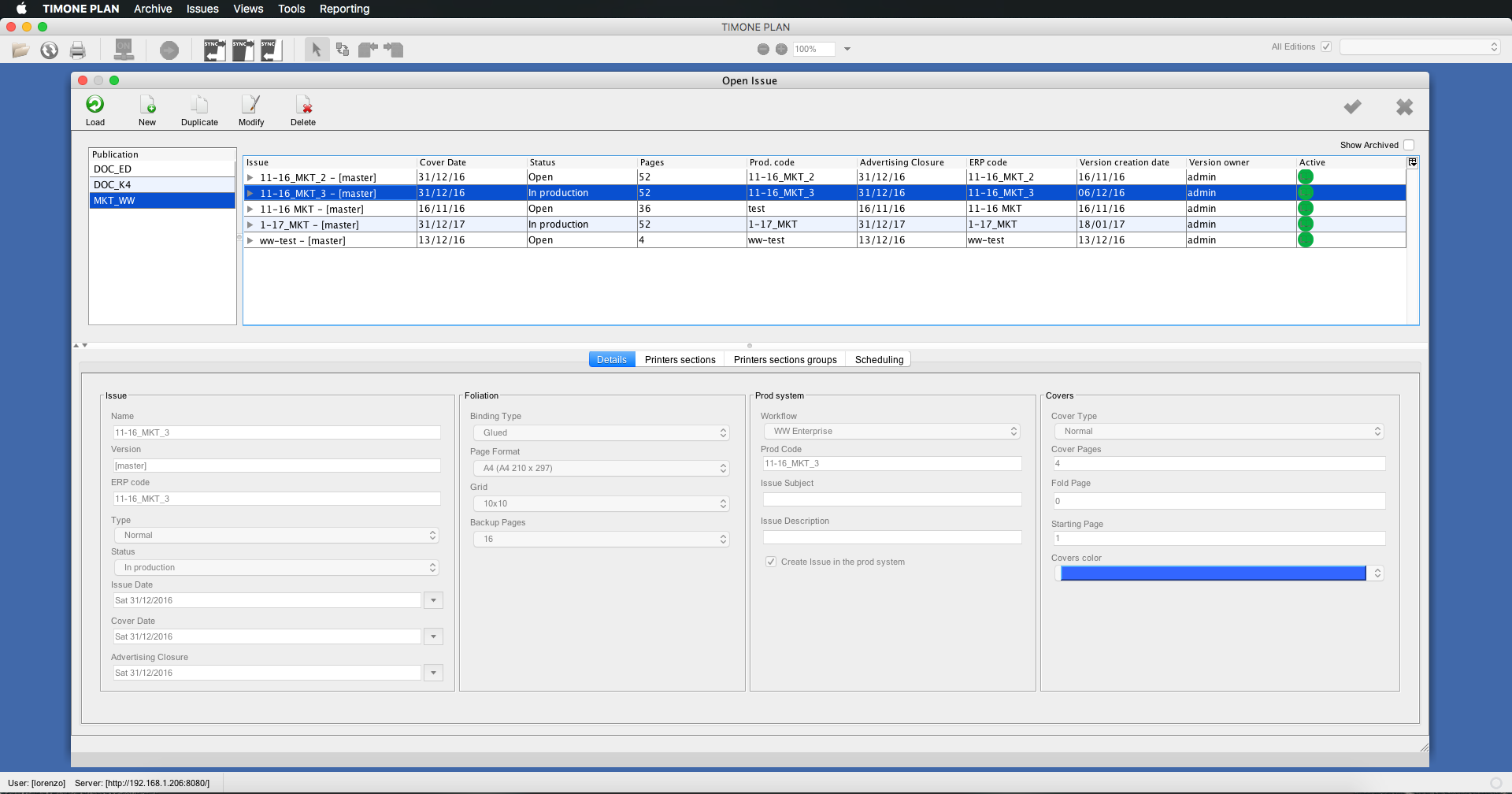
From a browser, access to the Main Page of TIMONE System and click on “PLAN” module to log-in;
During the launch of TIMONE Plan, you can choose to save the icon on your desktop or just open it.
COMMANDS
The available options are at the top of the screen:
| Command | Description |
|---|---|
| Load | This option allows to LOAD the selected issue |
| New | This option allows to CREATE a new issue |
| Duplicate | This option allows to DUPLICATE the selected issue |
| Modify | This option allows to MODIFY the selected issue |
| Delete | This option allows to DELETE the selected issues |
| Info |
|---|
| It is necessary to select an issue to enable Load, Duplicate, Modify and Delete commands. |
The delete command can be applied to more than one issues at a time, by ctrl-clicking on the issues you want to delete.
ISSUE PANEL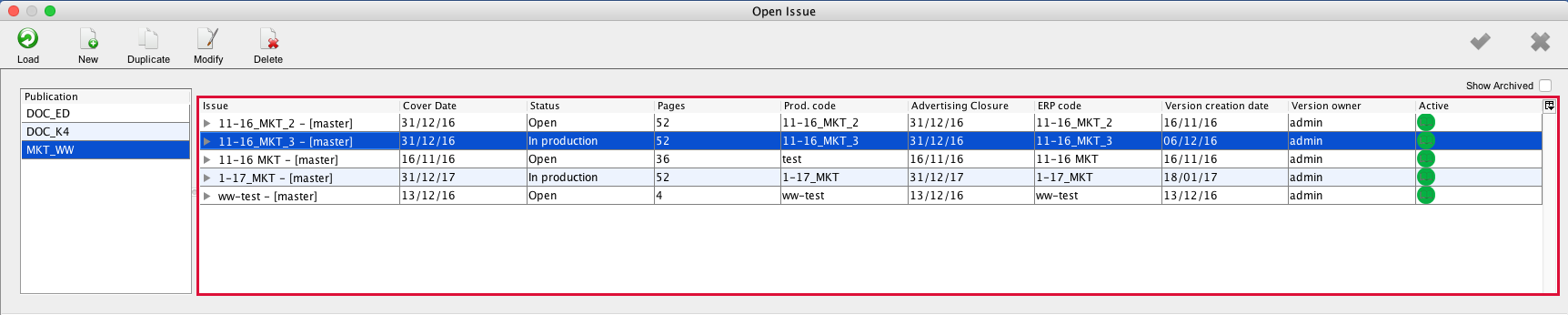
In this panel are listed the issues available for the selected publication. The following information is shown for every issue:
| Information | Description |
|---|---|
| Issue | name of the issue |
| Cover date | cover date of the issue |
| Status | status of the issue |
| Pages | number of pages, including covers |
| Production Code | production code associated to the issue |
TIMONE Plan is a client application that runs on the user's machine. The client is available as a native application for the different platforms and architectures:
- macOS with Apple Silicon processor (ARM)
- macOS with Intel processor
- Windows
The TIMONE System automatically recognizes the architecture of the machine in use and, at each startup, keeps the client updated to the correct version.
The supported languages are: Italian, English, French, German and Spanish.
To launch TIMONE Plan the user has to:
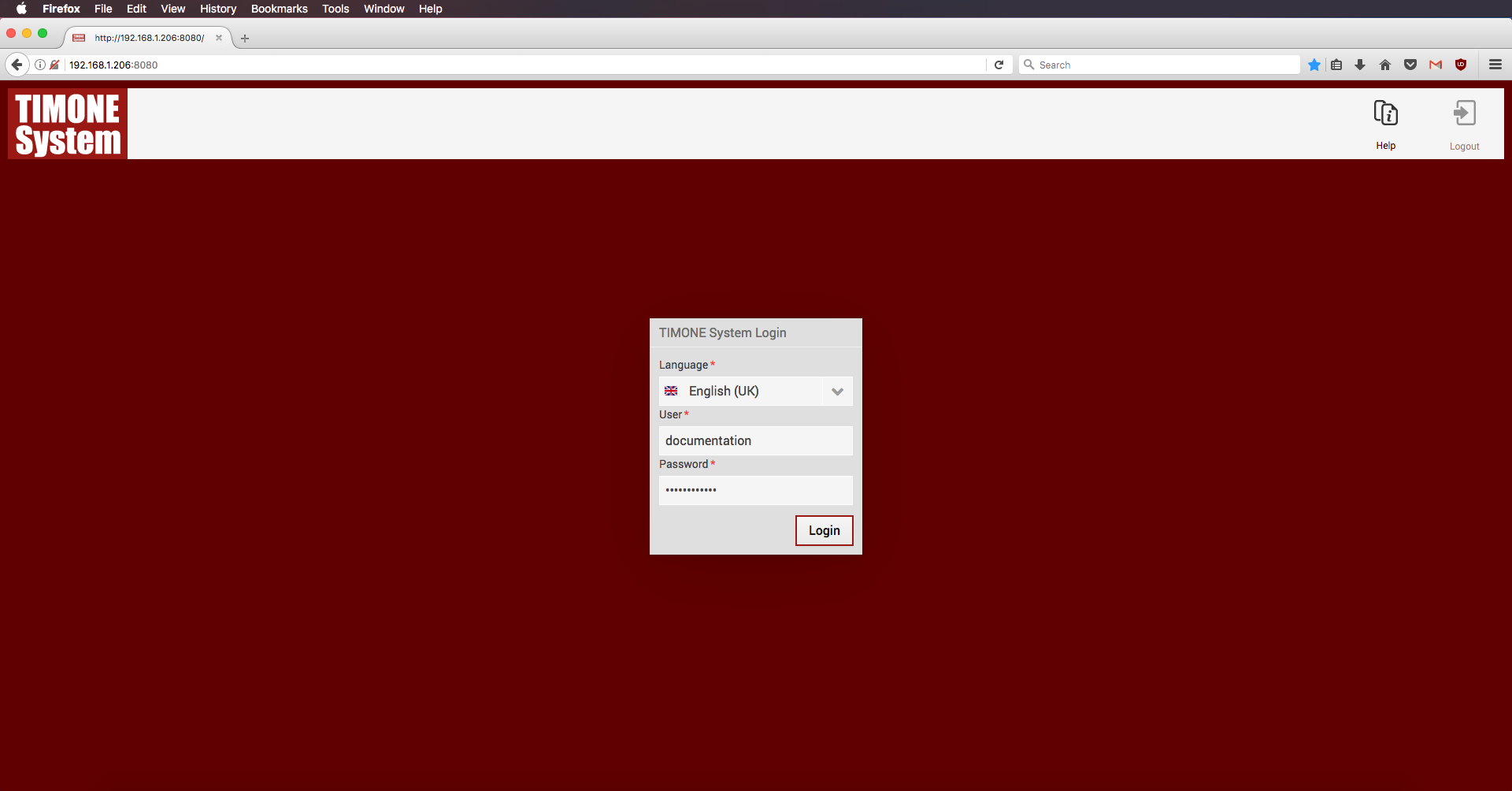
1. Open the TIMONE web page and log into the system;
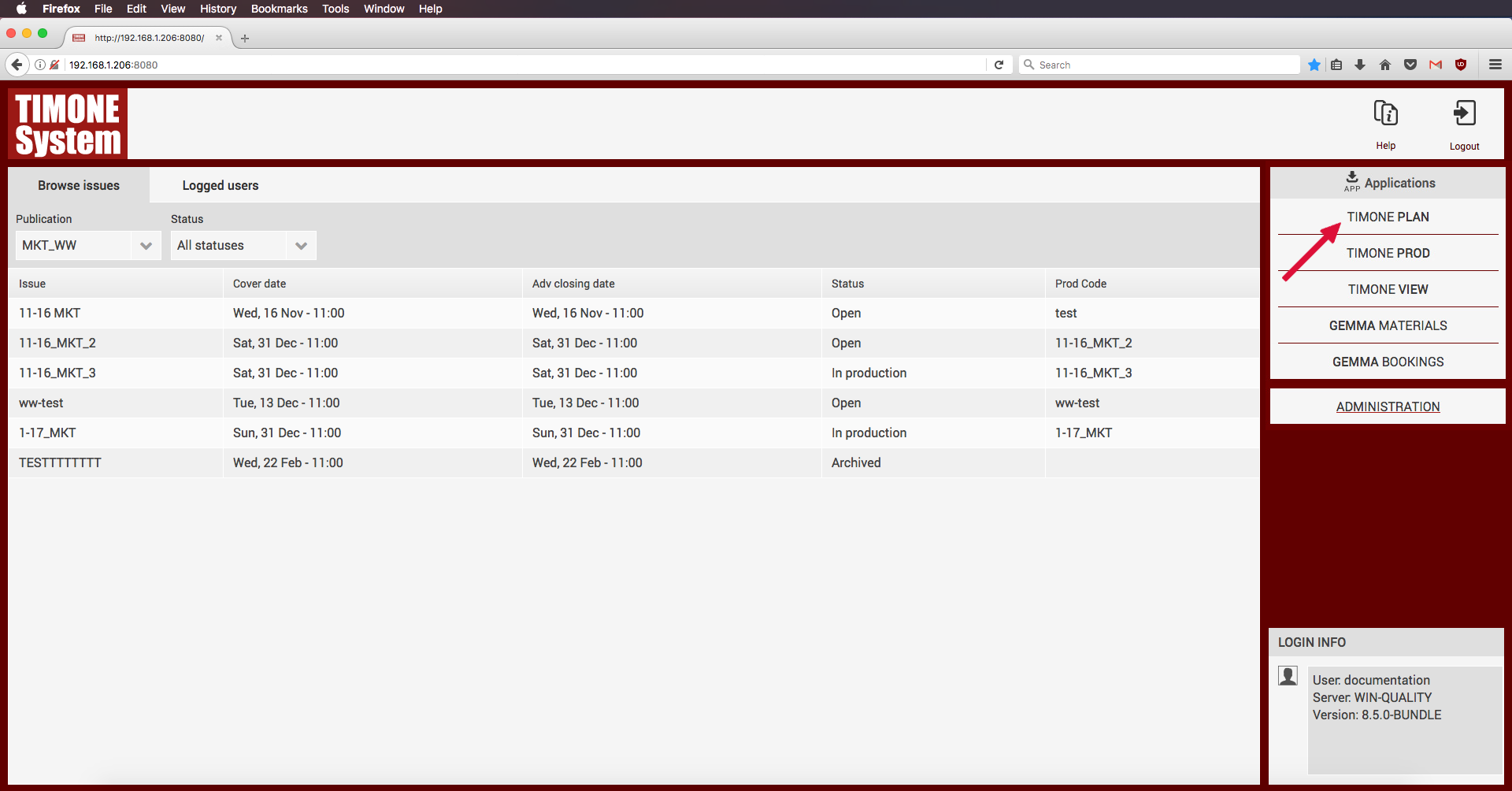
2. From the web page, download the TIMONE Plan installer corresponding to your operating system and architecture (macOS ARM, macOS Intel or Windows);
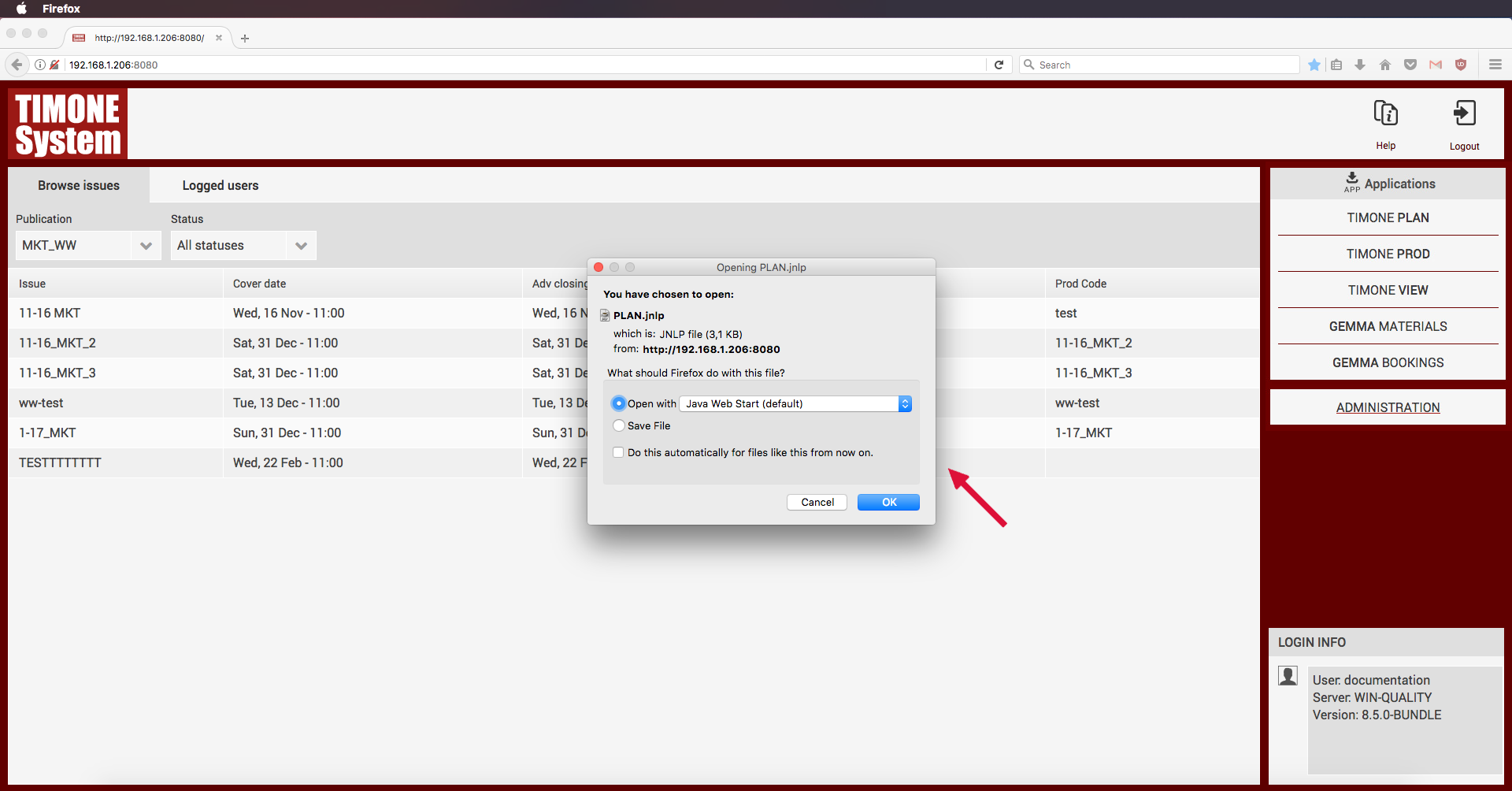
4. Save the .jnlp file
| Info |
|---|
Depending on the browser, the Java Web Start application can automatically start to manage the client download process; if this doesn't happen, the JNLP file is available inside the default download folder and can be launched by clicking on it. |
5. Right click on the .jnlp file downloaded on his client machine;
6. Open the .jnpl file with Java Web Start;
7. The application starts and the Login Page is displayed;
8. Select the language and enter the Username, Password and Server Address; The supported languages are: Italian, English, French, German and Spanish
9. Click on OK button;
10. After the login, the Issue Management Panel is displayed.
| Tip |
|---|
For more info please consult Issues Management Panel page. |
...